Wedding seating chart
Wedding seating chart: who sits where and how to make one
Sixty names, seven tables and one question: who sits with whom without hurting anyone’s feelings.
You can put together a first draft in an evening. But closer to the wedding, seating charts often have to change: someone RSVPs at the last minute, someone cancels the night before, and a guest sends someone else in their place.
In the Wedding Planner - No Stress! app, you lay out the room and seat your guests by hand or with auto-seating. The seating chart sign, place cards and table cards all come from that one chart.
Free to try. No credit card required.

The room
Start with the room: table layouts and how many tables you need
A seating layout is how the tables are arranged: round tables spread across the room, long tables in rows, or one big table in a U. It determines how many guests sit at each table and whether everyone can see the two of you. Your venue usually suggests one, so start by asking three questions:
- 1How many tables fit in the room?
- 2How many guests does each table seat?
- 3How will the tables be arranged, and where does your table go?
And ask for their floor plan. Most venues have one ready.
How many tables you need
Seats per table
Most tables seat 8 or 10.
6 tables of 10.
2 seats left empty.
Your own table isn’t included.
If you’re still choosing a venue, or yours offers a choice, here are the main layouts:
In the app, set the tables up just like your venue’s layout: round or rectangular, each with a name and a number of seats.
The tables are in place. Now the guests.
How to seat guests
How to make a wedding seating chart in one evening
Sixty names on one list look like a puzzle. Start with groups, and it all falls into place in four steps.
- 1
Split your guests into groups.
Your family, your partner’s family, friends, coworkers, kids.
- 2
Start with the key seats.
Decide where the two of you, your parents and your closest family will sit. The drawing below has tips on who goes where.
- 3
Build tables from the groups.
A big group gets its own table. Mix smaller ones so neighbors have something to talk about: mutual friends, work, hobbies. If a group won’t fit at one table, seat it at two tables side by side.
- 4
Fine-tune the details.
Seat people who don’t get along at different tables, but don’t banish anyone to a far corner. Your parents usually know about family feuds. Find a friendly table for guests coming solo.
Who sits where
- 1
The two of you. Where everyone can see you. A head table with your wedding party, a sweetheart table for two, or a table with friends or family: whatever feels most like you.
- 2
Parents. Usually at the table closest to yours. If your parents are divorced, ask them what would feel easier: sharing a table or having separate ones.
- 3
Older guests. Away from the speakers, somewhere easy to get up from, with a clear view.
- 4
Dancers. Close to the dance floor: they’ll be heading there more than anyone.
- 5
Kids. Little ones usually sit with their parents, and a few older kids may be happier at a table of their own.
In the app you drag guests onto tables, and auto-seating helps with the first draft. Seat your parents and closest family yourself, and it fills the remaining seats. It keeps each group together, never splits anyone from their partner or kids, and skips anyone who declined. Then you fine-tune by hand.
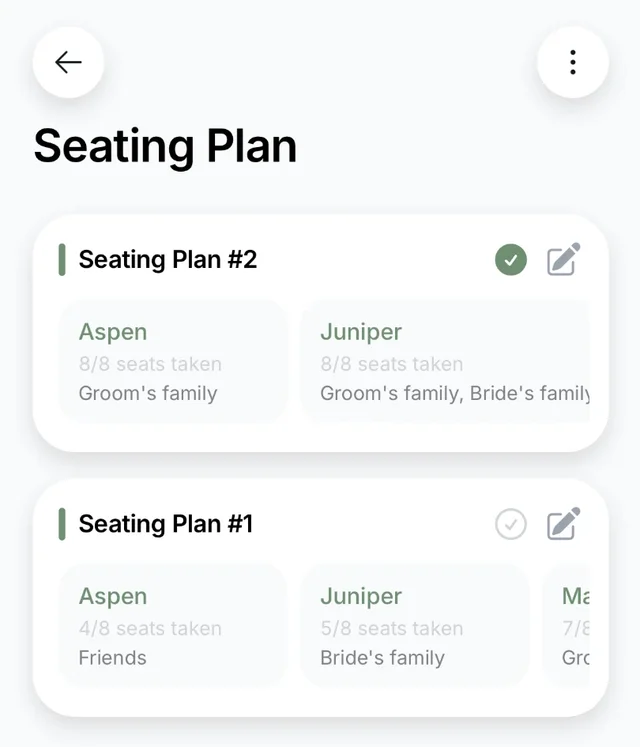
Can’t decide whether your parents sit with you or at the next table? Make a second version of the chart, compare it with the first and keep the better one. On paper, every new version means redrawing the whole thing.
Looks finished. But it’s only a draft.
The last weeks
The last weeks: why seating charts get redone
A seating chart rarely falls apart over who sits with whom. It falls apart over changes, and they keep coming right up to the wedding.
A month or two out
The draft is ready, but not everyone has replied: some answer right away, others wait until the deadline. Seat the guests who’ve said yes first and leave the rest unseated until they RSVP.
One to two weeks out
Your caterer usually needs the final seating chart, your DJ needs to know who’s who, and your stationer needs the names for the cards. Send everyone the same version, dated, so no one works from an old one.
Two or three days out
Two guests cancel, and an uncle sends his son in his place. That’s why the sign and cards are best printed at the very end.
The day of
The sign says “Margaret Hill” and the place card says “Peggy,” so a guest has to look twice. Make the sign and the cards from one list.
If your chart lives in a spreadsheet or on paper, every change has to be copied to the floor plan, the sign, the place cards and the lists for your caterer and DJ. The closer the wedding gets, the easier it is for an old version to slip through.
One chart
An online seating chart: one plan instead of five versions
In the app, everything comes from one seating chart: the sign, the cards, the links. Move a guest, and they’re in their new seat everywhere.
Couples have already seated more than 280,000 guests with Wedding Planner - No Stress!
What you do in the app
Floor plan
Your venue’s layout, table by table. It’s a seating chart maker: drag tables and guests around with your finger.
Guests at tables
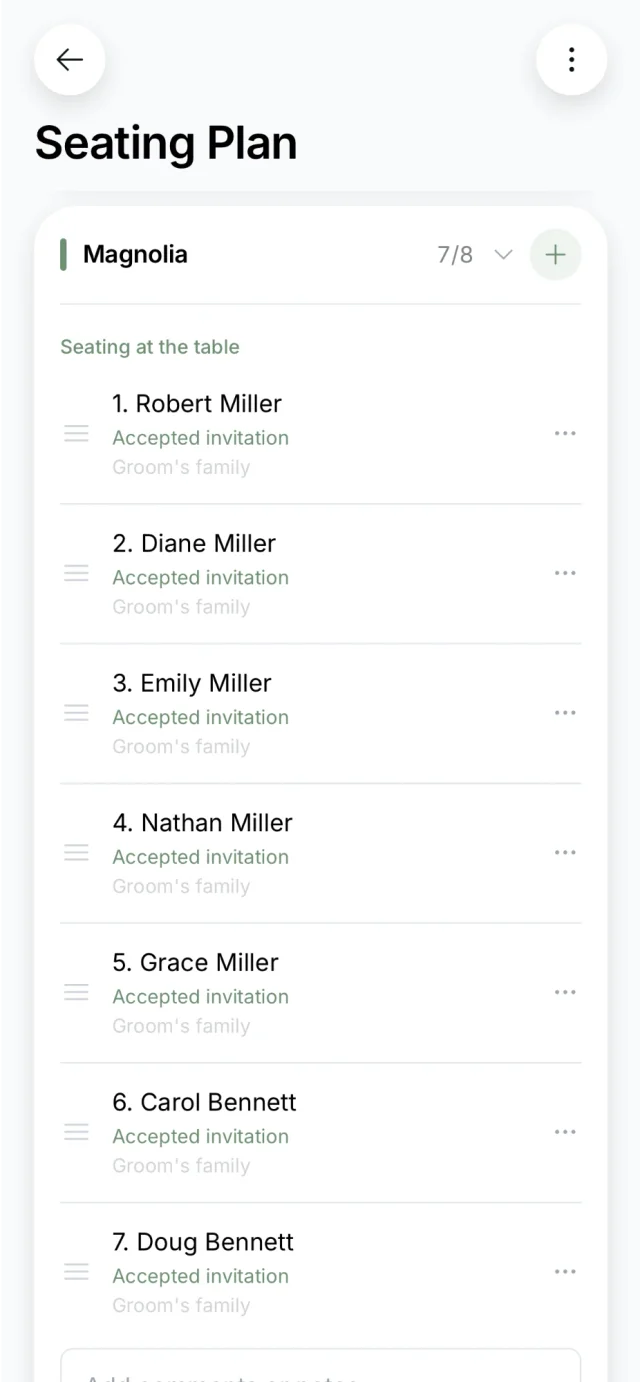
By drag and drop or with auto-seating. You can make several versions and keep the best one.
The seating chart sign
Ready-made templates or your own design: fonts, colors, background.
Cards
Place cards with each guest’s name, and table cards listing who sits there.
When things change
RSVPs come in on their own.
Guests reply to your online invitation, and their answer shows up in the seating chart right away. You can also see who still needs a seat.
Separate links for your caterer, DJ and guests.
Show your caterer notes on tables like “high chair,” and give guests just the chart, where everyone can find their table. The links open without the app and always show the latest version.
Print at the last minute.
If something changes the day before, you don’t redo the cards by hand: update the seating, and the sign and cards update with it.
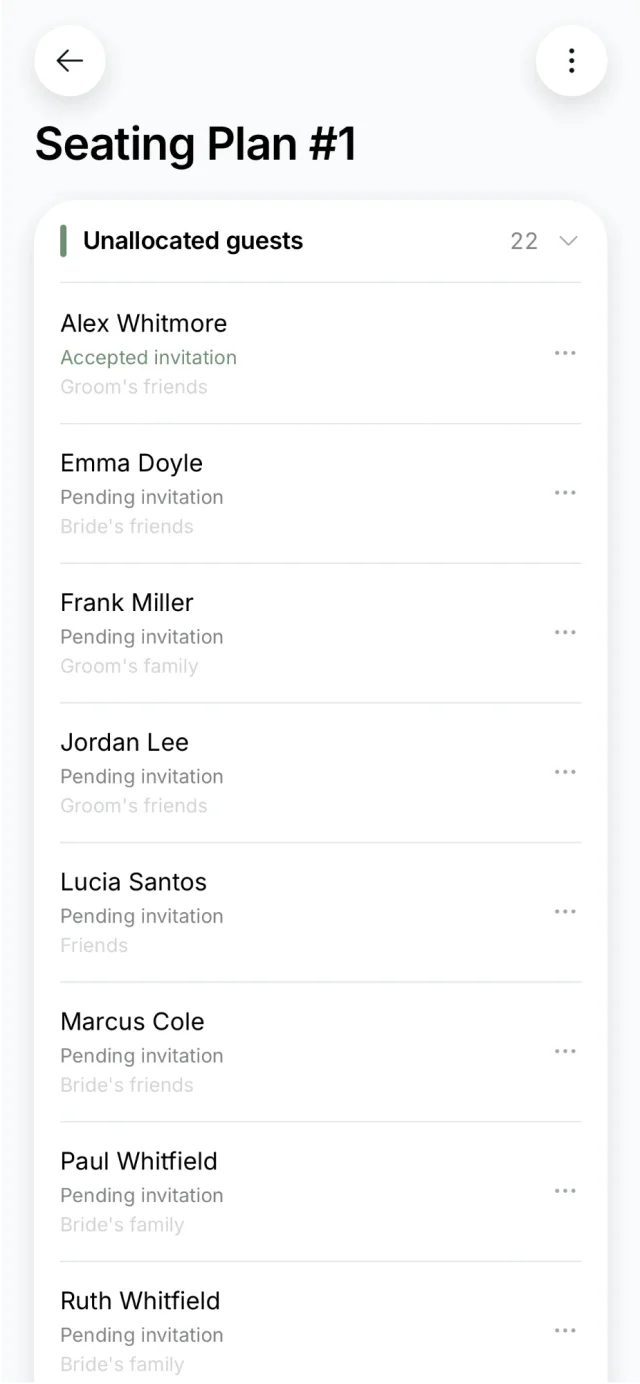
Guests without a table and their RSVPs 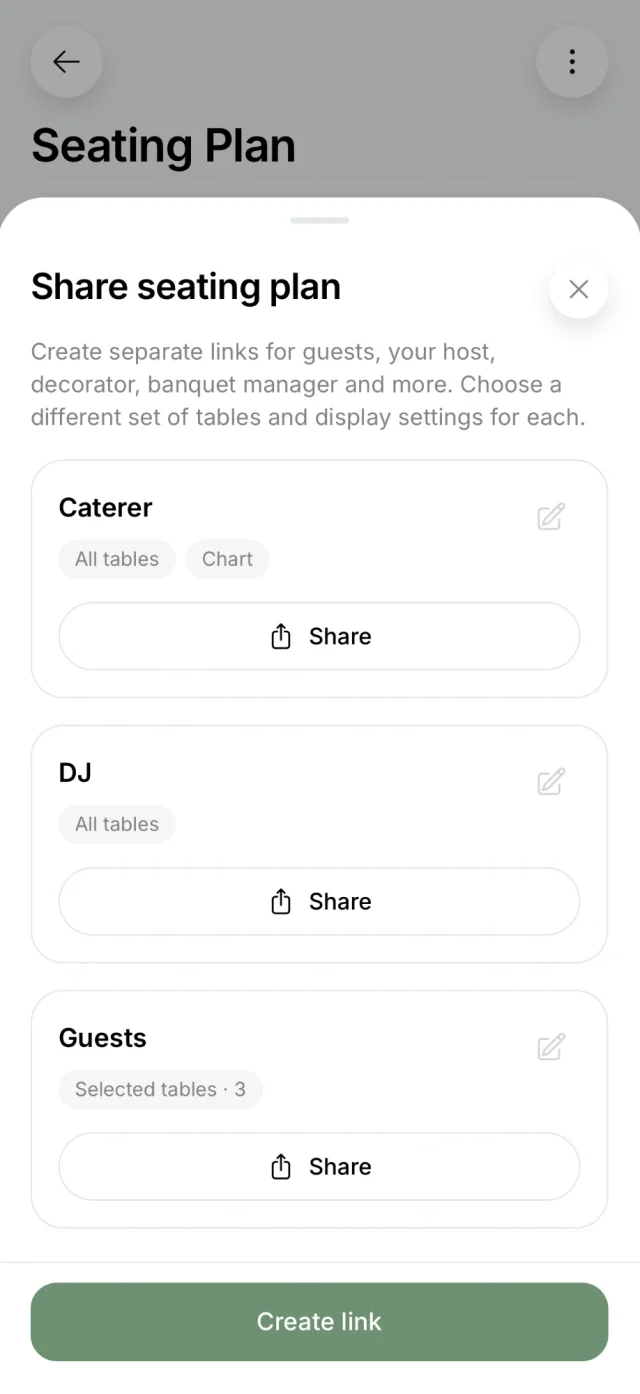
Links for your caterer, DJ and guests 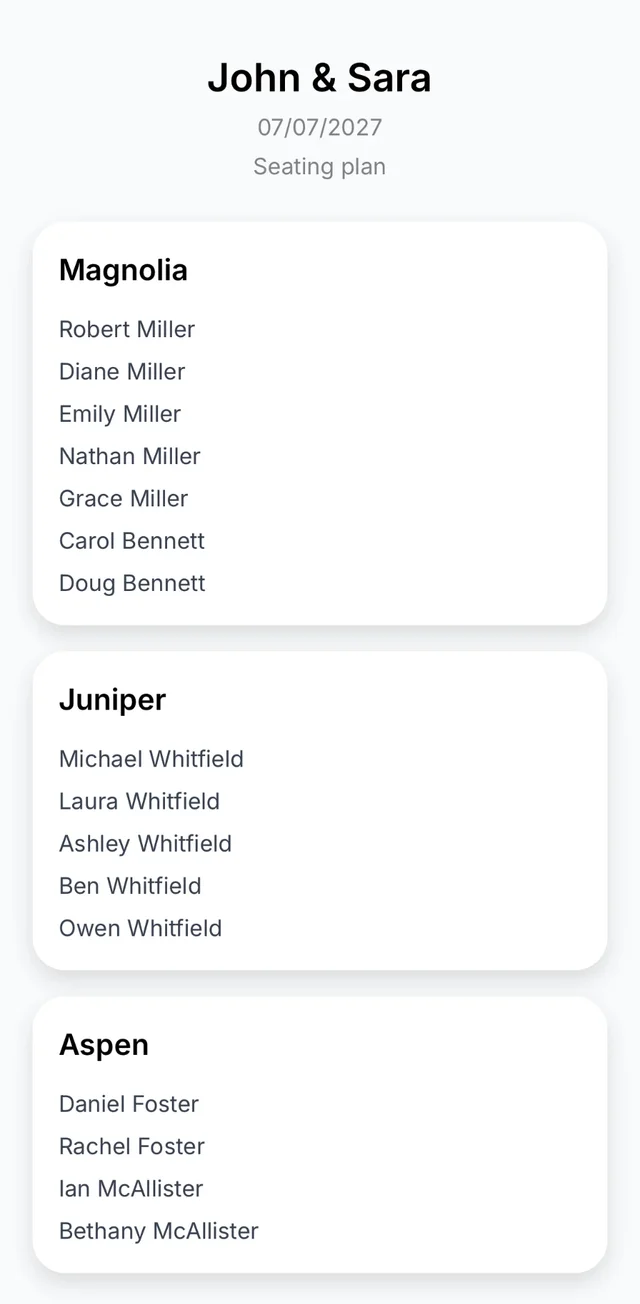
What a guest sees 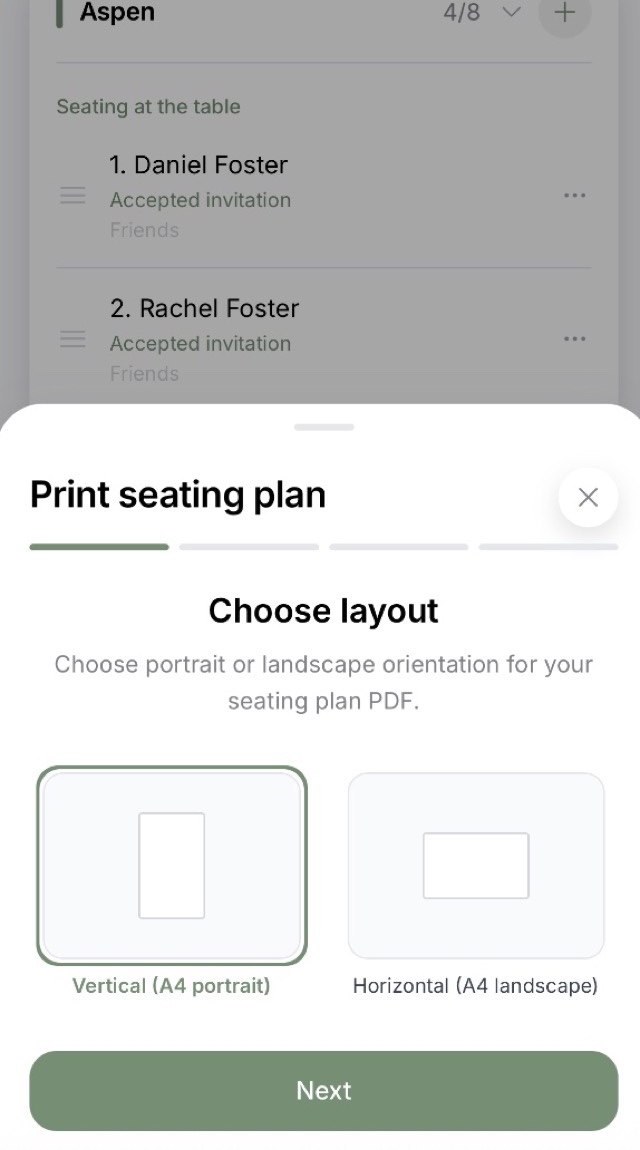
Printing the seating chart
Your partner and your planner see the same chart and can edit it.
“…we organized our entire wedding in it! We added all our expenses there and planned the seating chart too…”
Also useful
Seating is rarely the only thing left in the last weeks. The app covers the rest too:
Templates and cards
Seating chart templates and place cards
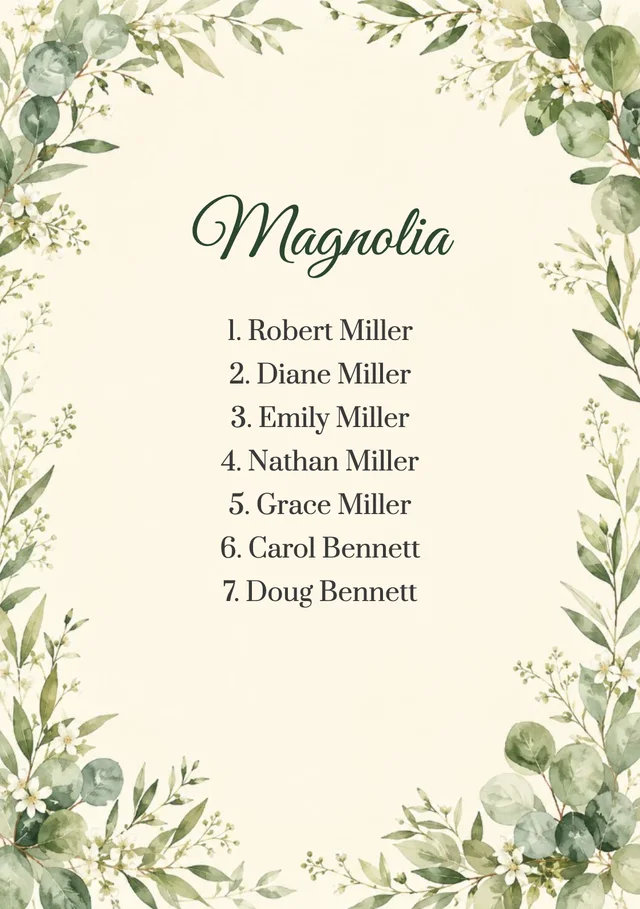
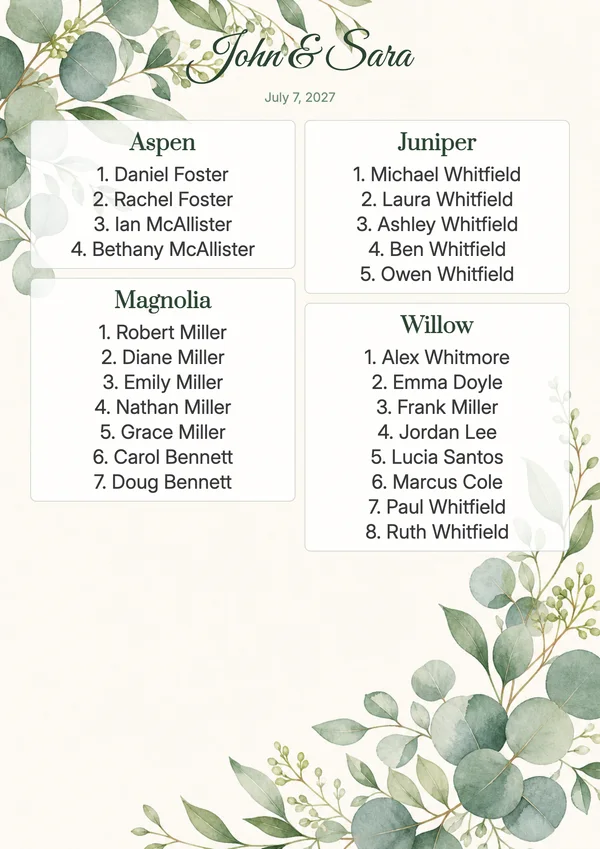
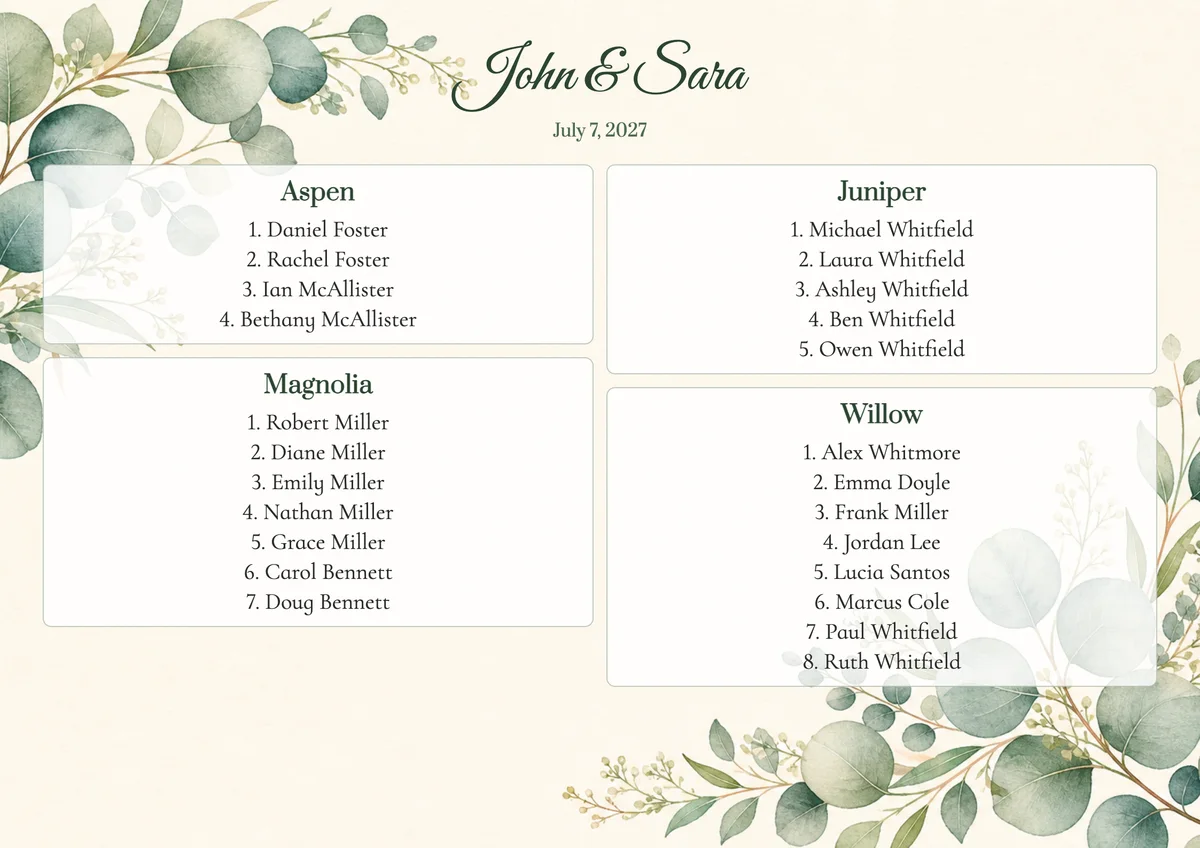
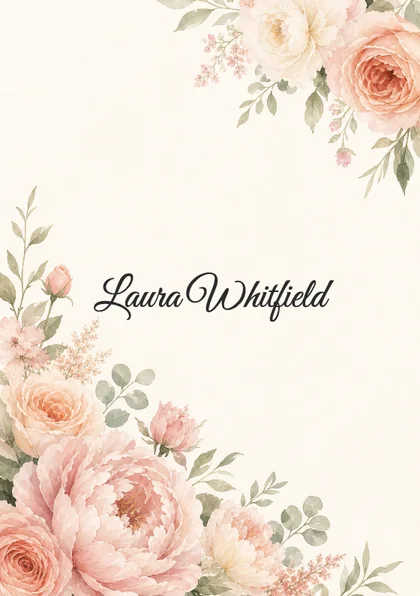
Here’s what the sign at the entrance and the cards on the tables look like. The app has ready-made templates, or you can design your own with your choice of fonts, colors and background.

How to display the seating chart
Put the chart on an easel or a stand at the entrance to the room, but not in the doorway. Guests need space to stop and find their name while others walk past. And check that names can be read from a few feet away.
Free place cards
Make place cards right here: type the names, pick a format, background and font, and download a PDF. Free, no sign-up.
One name per line · 4 cards
The PDF downloads to your device. Print at 100% scale with no margins.
Here you type the names yourself. In the app, cards are made from your guest list and seating chart, so after a change you never retype them.
Wedding seating chart questions
- When should we do the seating chart?
- Start a draft a month or two out, once you know your guest list and how many tables you have. Caterers usually want the final seating chart one to two weeks before, but every venue has its own deadline, so ask early. Print the sign and cards two or three days before, once the last RSVPs are in.
- How many people fit at a round table?
- Usually eight or ten. A 60-inch round typically seats eight comfortably, and a 72-inch round seats ten. Allow about 24 inches of table edge per guest. The exact number depends on the table, the chairs and the place settings, so check with your venue.
- Where should parents sit?
- Usually at the table closest to yours, or with you at a family head table. If your parents are divorced, ask them ahead of time what would feel most comfortable.
- Do we need a kids’ table?
- Not always. Little ones usually sit with their parents. A few older kids may be happier at their own table, especially with a sitter or something to do. Keep it away from the speakers.
- What if a guest cancels at the last minute?
- One empty seat is barely noticeable, so you can simply leave it. If several guests at one table drop out, ask your caterer to clear their place settings or move a few neighbors over. And if someone comes in a guest’s place, change the name on the sign and the place card.
- How do guests find their seats?
- From the seating chart sign or escort cards at the entrance, the place cards and the table numbers or names. You can also send guests a link to the chart before the wedding, where everyone can find their table.
- Table numbers or table names?
- Numbers are easier to find, and names don’t rank guests as “table one” and “table ten.” Couples name tables after cities, flowers or places they’ve been together. Just make sure the sign and the table say the same thing.
- Can I make a seating chart online for free?
- You can try seating in the app for free: the floor plan, auto-seating, the sign and the cards. And place cards are free right on this page. Make place cards
A seating chart that keeps up with your RSVPs
Put together a first draft in an evening and update the chart as RSVPs come in. The sign and the cards update with it.
Free to try. No credit card required.